
MIKROTIK NAT
This is a short howto explaining how to set up a full-NAT on a Mikrotik RouterOS.
This setup allows you to hide (masquerade) your private IP address from a public network. This means, for example, that in your private network you can have whatever private IP you want which is then in turn translated to the public network IP given to you by your network provider. This tutorial can thus be used by clients who want to connect to a network without requiring a change to the internal IP addressing of their LAN.
Example
In the following example we have a wireless interface which connects to a public wireless network and an Ethernet interface for the local private network.
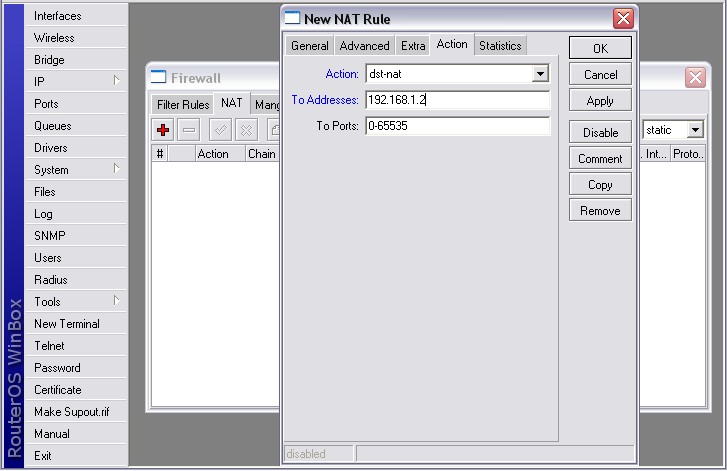
Suppose we have 192.168.1.2/24 (Internal Private Network)
Your RouterBoard's Ethernet interface is 192.168.1.1/24 (fixed Private Network IP)
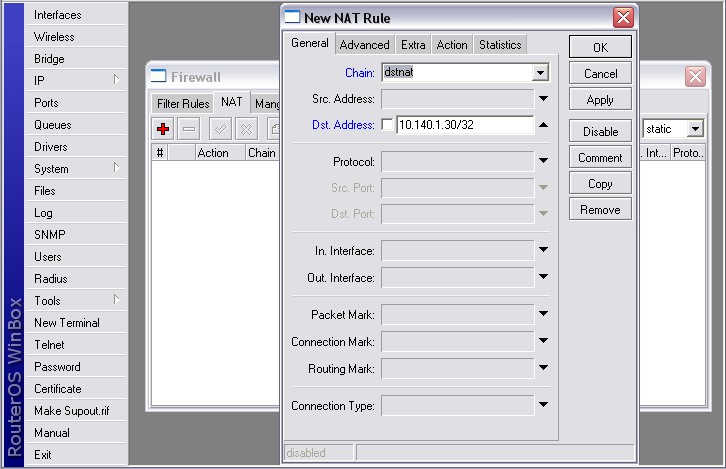
Your RouterBoard's Wireless card is 10.140.1.30/26 (Public Network)
The Access Point you connect to is 10.140.1.1/26 (Public Network gateway)
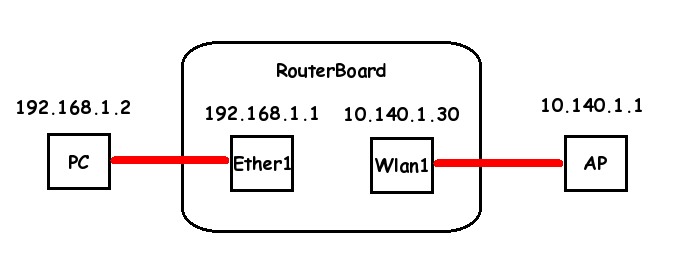
- First set the two IP addresses of the ethernet and wireless interfaces
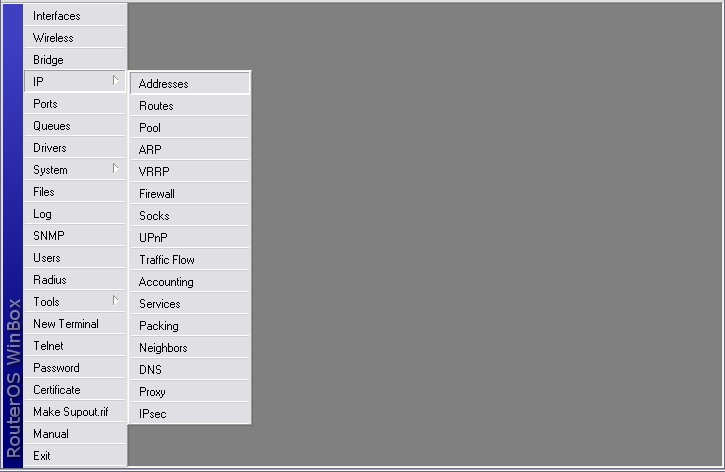
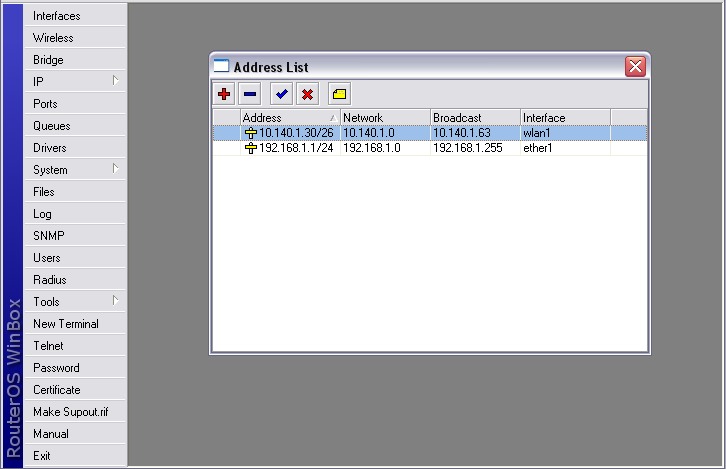
- Second set the static route so that we can access the external Public network
most likely you will want to use 0.0.0.0/0 as the destination in your primary public route----
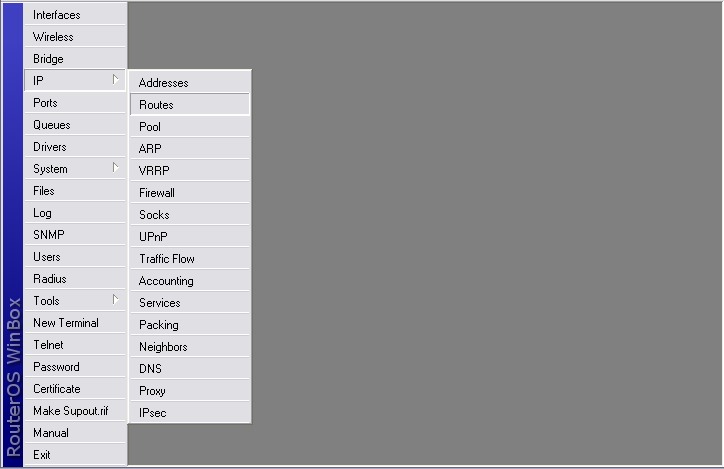

- We start building the NAT as follows
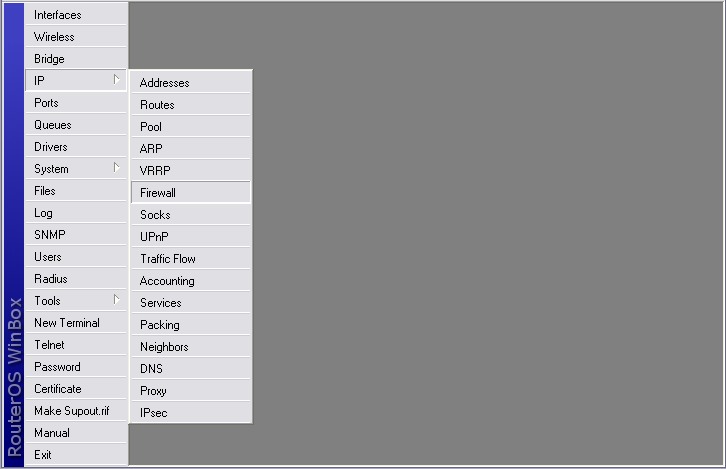
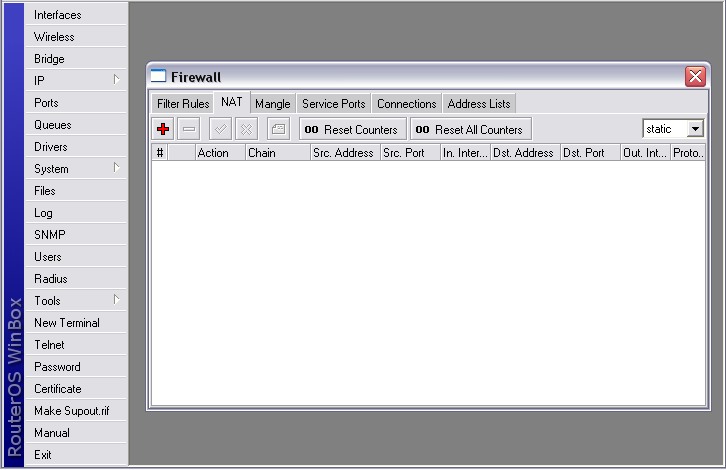
- First the Destination Network Address Translation setting (DST-NAT)
Only do this if you want to expose this specifice internal pc to all ports, this is the same as a DMZ-----
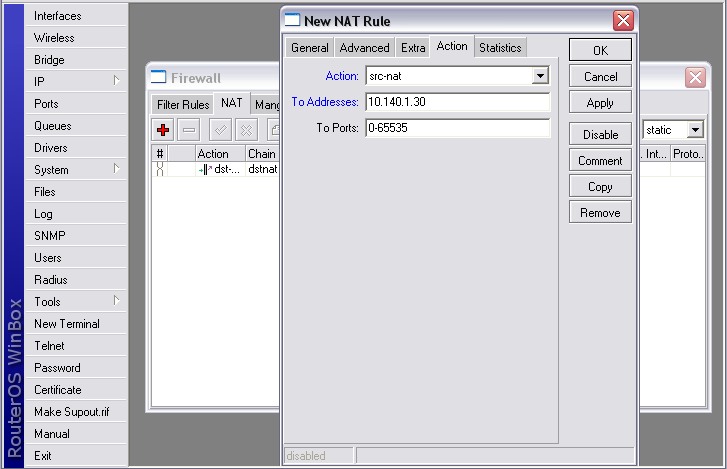
- Then the Source Network Address Translation setting (SRC-NAT)
---On the Action Screen you could instead choose masquerade--- 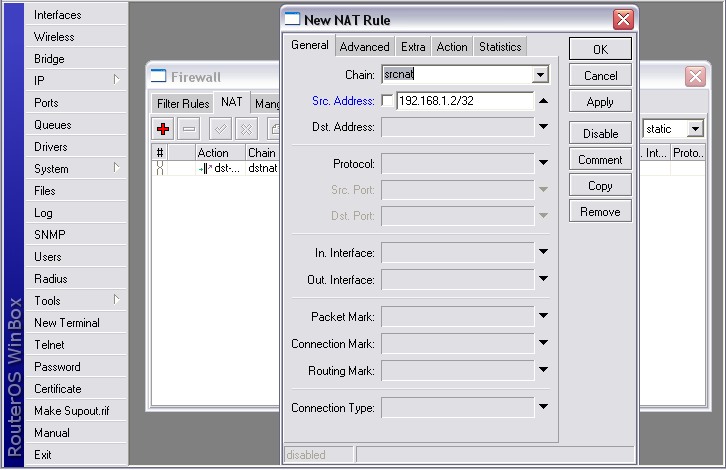
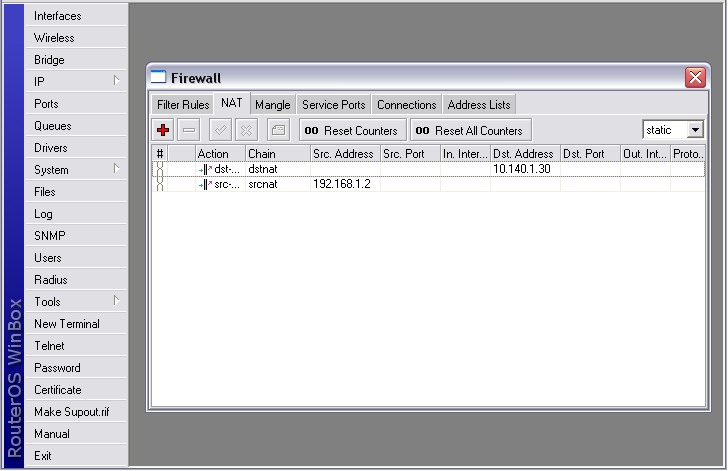
- Private to Public Network Address Translation (NAT) is Complete!


No comments:
Post a Comment
If This Post is Helpful for you Please comments and Share.