Pages

Featured Post 1

Load Balance Mikrotik with PCC using PPPoe-Client connection

Thursday, June 6, 2013

Load Balance Mikrotik with PCC using PPPoe-Client connection

Mikrotik tutorial Load Balance Mikrotik with PCC using PPPoe-Client connection is used for bandwitdh optimalization,fail over, and bandwidth control usage.
First, make new mangle for mark connectio, packet and routing :
/ ip firewall mangle
add chain=input in-interface=internet1 action=mark-connection new-connection-mark=internet1_conn
add chain=input in-interface=internet2 action=mark-connection new-connection-mark=internet2_conn
add chain=output connection-mark=internet1_conn action=mark-routing new-routing-mark=to_internet1 
add chain=output connection-mark=internet2_conn action=mark-routing new-routing-mark=to_internet2
add chain=prerouting dst-address-type=!local in-interface=Local per-connection-classifier=both-addresses:2/0 \
action=mark-connection new-connection-mark=internet1_conn passthrough=yes
add chain=prerouting dst-address-type=!local in-interface=Local per-connection-classifier=both-addresses:2/1 \
action=mark-connection new-connection-mark=internet2_conn passthrough=yes
add chain=prerouting connection-mark=internet1_conn in-interface=Local action=mark-routing new-routing-mark=to_internet1
add chain=prerouting connection-mark=internet2_conn in-interface=Local action=mark-routing new-routing-mark=to_internet2

Than set the default route and fail over gateway :
/ ip route
add dst-address=0.0.0.0/0 gateway=10.111.0.1 routing-mark=to_internet1 check-gateway=ping
add dst-address=0.0.0.0/0 gateway=10.112.0.1 routing-mark=to_internet2 check-gateway=ping
add dst-address=0.0.0.0/0 gateway=10.111.0.1 distance=1 check-gateway=ping
add dst-address=0.0.0.0/0 gateway=10.112.0.1 distance=2 check-gateway=ping

Last, set the NAT for local connection:
/ ip firewall nat
add chain=srcnat out-interface=internet1 action=masquerade
add chain=srcnat out-interface=internet2 action=masquerade

That is simple script for Load Balance Mikrotik with PCC using PPPoe-Client connection.

INSTALL MIKROTIK ROUTER OS

INSTALL MIKROTIK ROUTER OS

In this article i will show you how to install MikroTik Router OS on a PCs. Just relax..because this step is very simple and easy to practice at your home. I will Guide you how to install the Router OS step by step. Prepare your pc with minimum requirement: Intel Pentium 3 or pentium 4 with minimal 512 MB storage ( HDD ) and 64 MB Physical Memory. You should buy minimal 1 NIC or Network address Card because the NIC will be used to connetcing the client trhough the internet( On Board and New NIC ). For the first steps, Download the Router OS from official Mikrotik website at this link www.mikrotik.com/download.html and Select system type with PC / x86, Select software type with all version. Download the iso's file. When i wrote this article, The last version of Mikrotik router OS is OS 5.7.

Now.. after you have finished to downloads the image file , burn the images file to the CD's and make sure the file is not currupted. You can burn's the image files using free software burner tools like free iso burner, and download the software from http://www.freeisoburner.com/ , or you can use the another softwares.
After you finished to burn the cd , turn on your pc and make sure you have been enable first boot with CD from the BIOS setup. Now the boot proces will start, The computer's will boot from the cd . After that you will see a menu to choose what packages to instal on your pc. You will see the welcome screen bellow :
Welcome to MikroTik Router Software installation Move around menu using 'p' and 'n' or arrow keys, select with 'spacebar'. Select all with 'a', minimum with 'm'. Press 'i' to install locally or 'r' to install remote router or 'q' to cancel and reboot. 
Press "a" key for select all package and then press "i" to install the router OS.
After that, Press [Y] to continue the installation. In this porcess, Mikrotik loader will erase all of data on your hardrive. Make sure you have been backup the data to another hardrive.
Next step :
Do you want to keep old configuration? [y/n]:
You should choose whether you want to keep old configuration (press [Y]) or to erase the configuration permanently (press [N]) and continue without saving it.
I sugest you to press the [N] button to make fresh install Router OS. After you pressed the N Button, Mikrotik will Creating the partition and Formatting the disk.
The Mikrotik system will install selected packages. After that you will be prompted to press 'Enter'. And remove the CD from your CD-Drive:
Software installed. Press ENTER to reboot
After rebooting type "admin" as login and keep password blank. Because the default password Mikrotik is a Blank
After that , router OS is already installed on your PC and ready to configure. In the next artcle i will show you how to setup Mikrotik as a Internet gateway.
I hope this article can help you to install the Mikrotik Router OS

Free Configure MIKROTIK ROUTER OS Tutorial Download

Wednesday, June 5, 2013

Free Configure MIKROTIK ROUTER OS Tutorial Download

Mikrotik Free Download
After i wrote article about how to install Router OS on a Pc's, Now i will show you how to configure the Mikrotik Router OS as a Internet Gateways. For your information, to setup the Mikrotik Router OS you can use some metode. First, We can configure directly from the pc's . Just turn on the pc and you will show the login screen after the boot process finished.
Second : We can use the small tools from mikrotik with Grapic user Interface,The tools is a magic tools, Mikrotik give the name as Winbox . But on this article i will guide you to setting up the router Os with the first methode. Unfortunetly with this methode you will setup the router with command line interface. But don't worry, you can copy paste my configuration for the first time before you understand the command line function.
If you copy-paste my configuration, Make sure the Network topology on your home is same as with this tutorials.
For the first : Setting up your DSL Modems or your internet connection with this parametre :
Modem Ip/ Internet Ip : 192.168.1.1
Your Laptop/workstation IP : 192.168.0.10
We will start the configuration :
system identity set name=MyNet
ip address add address 192.168.1.2/27 interface=ether1
ip address add address 192.168.0.1/24 interface=ether2
Explanation :

-System identity is a identity of aour routers, you can change with what ever you want
- Ip address 192.168.1.2 is an Ip address which will comunicated with the Modems Ip to the internet
- Ip address 192.168.0.1 is a default gateway for the client/your computers
- Ether1 is an interface, you must connetcting the Modems with the UTP cable to ether1 port
- Ether2 is an interface which connecting your laptops or your PC client/switch. Remember, you must be connecting with this port if you wanna conect to the internet with your pc.
Next step : Add the internet gateway
add comment="" disabled=yes distance=1 dst-address=0.0.0.0/0 gateway=\
192.168.1.1 scope=30 target-scope=10
192.168.1.1 is your Modems Ip
Next : DNS Setup
/ip dns
set allow-remote-requests=yes cache-max-ttl=1w cache-size=2048KiB \
max-udp-packet-size=512 servers=8.8.8.8,8.8.4.4
8.8.8.8 and 8.8.4.4 is a google free DNS service. You can use your own parametre from ISP's
Before i show you the next steps, you must test your connection with ping command to the DNS servers :
ping 8.8.8.8
8.8.8.8 64 byte ping: ttl=242 time=255 ms
8.8.8.8 64 byte ping: ttl=242 time=243 ms
8.8.8.8 64 byte ping: ttl=242 time=247 ms
8.8.8.8 64 byte ping: ttl=242 time=243 ms
4 packets transmitted, 4 packets received, 0% packet loss
round-trip min/avg/max = 243/247.0/255 ms
If the DNS replayed , you have been succed to configure the router to cominicate with the DNS servers and Internet.
As long as, your router have been succes to comincating with the internet, But your computer Can;t do it. We must create the rules to NAT the Internet to your computers.
add action=masquerade chain=srcnat comment="" disabled=no out-interface=\
ether1
You should to change your ip address configuration on your laptops to the static IP.
for the exmaple :
Ip address : 192.168.0.20
netmask : 255.255.255.0
Default gateway : 192.168.0.1
Primary DNS : 8.8.8.8
Secondary DNS : 8.8.4.4
This is it, you have been succed to configure the Mikrotik router os as a Internet Gateway. In the next article i will show you how to configure mikrotik with Grapic user interface using a tools called Winbox. I hope this article can help you. Thanks

Previous:Install and Download Mikrotik Router OS

Avro Keyboard Free Download

Avro Keyboard is the first free Bangla typing software for Windows. Type Bangla anywhere- write documents, spreadsheets, send Bangla email, chat in Bangla, write Bangla blog or design Bangla web pages, anything is possible! Completely Unicode complaint. Supports all popular methods of Bangla typing - English to Bangla phonetic typing, fixed keyboard layout based typing, and mouse based Bangla typing. With the built in Keyboard Layout Editor, users can also create new Bangla keyboard layouts or edit existing one. User friendly interface, easiest typing system, lots of typing automation tool, free online support makes it the most popular Bangla typing software of today.

What's new in this version: Version 5.1 has added Dictionary based typing mode in Avro Phonetic,unicode to ANSI (Bijoy 2000) plain text converter tool,keyboard Mode switcher key - Ctrl+Space. Ctrl+Alt+B option is removed and cool splash screen and windows 7 ready icons Showing splash.
Click to see larger images

Configure Network Address Translation (NAT) on Mikrotik RouterOS

MIKROTIK NAT

This is a short howto explaining how to set up a full-NAT on a Mikrotik RouterOS.
This setup allows you to hide (masquerade) your private IP address from a public network. This means, for example, that in your private network you can have whatever private IP you want which is then in turn translated to the public network IP given to you by your network provider. This tutorial can thus be used by clients who want to connect to a network without requiring a change to the internal IP addressing of their LAN.

Example

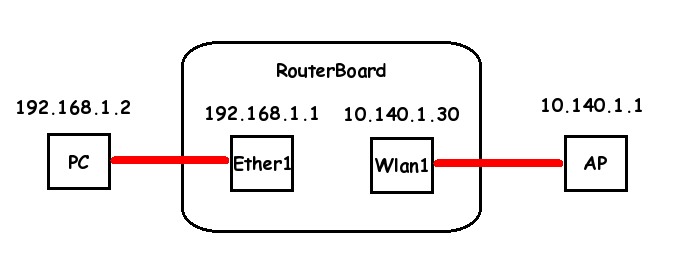
In the following example we have a wireless interface which connects to a public wireless network and an Ethernet interface for the local private network.
Suppose we have 192.168.1.2/24 (Internal Private Network) 
Your RouterBoard's Ethernet interface is 192.168.1.1/24 (fixed Private Network IP) 
Your RouterBoard's Wireless card is 10.140.1.30/26 (Public Network) 
The Access Point you connect to is 10.140.1.1/26 (Public Network gateway) 
NAT on Mikrotik

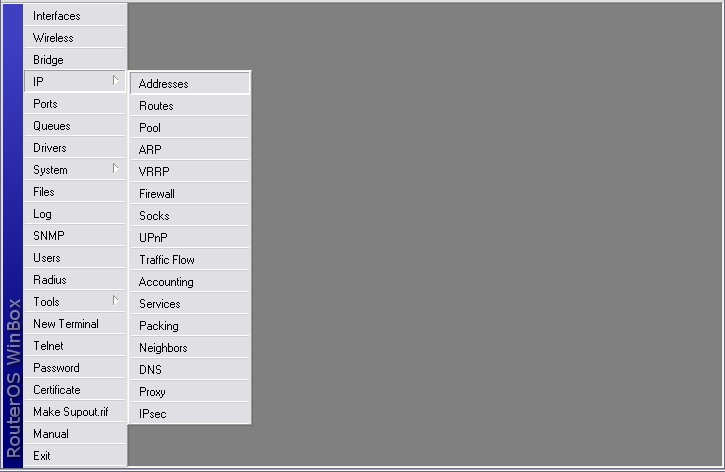
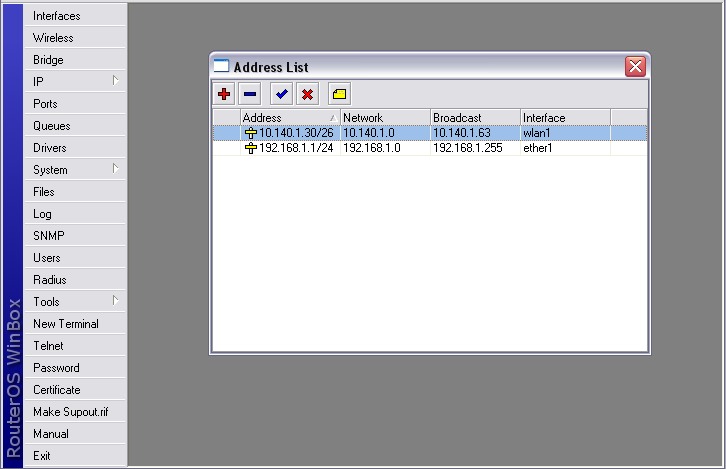
  • First set the two IP addresses of the ethernet and wireless interfaces
NAT on Mikrotik Tutorial

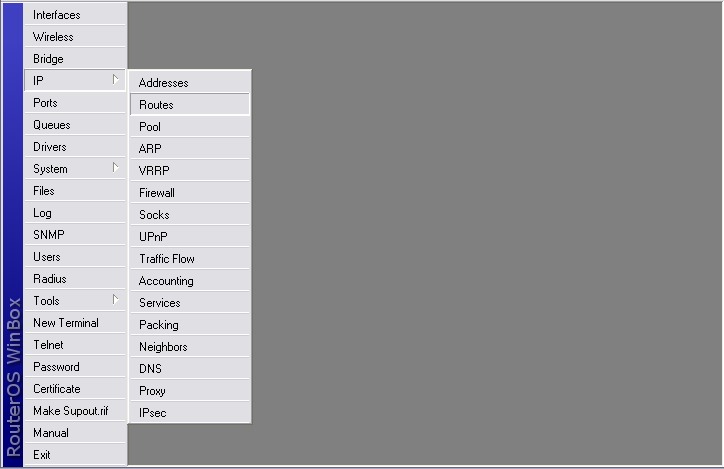
  • Second set the static route so that we can access the external Public network

most likely you will want to use 0.0.0.0/0 as the destination in your primary public route----
NAT on Mikrotik Tutorial

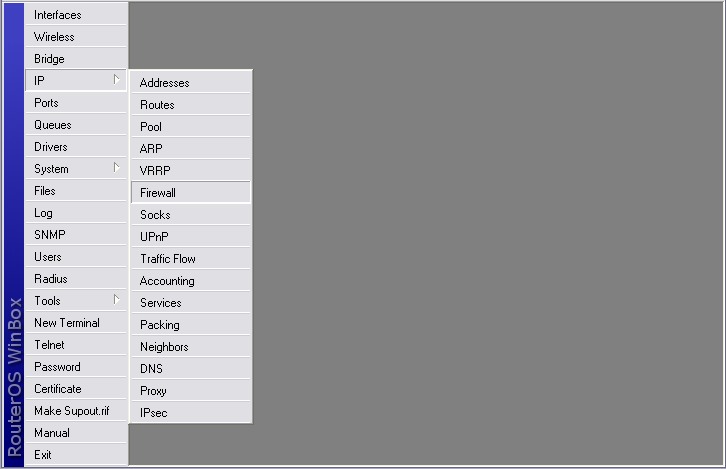
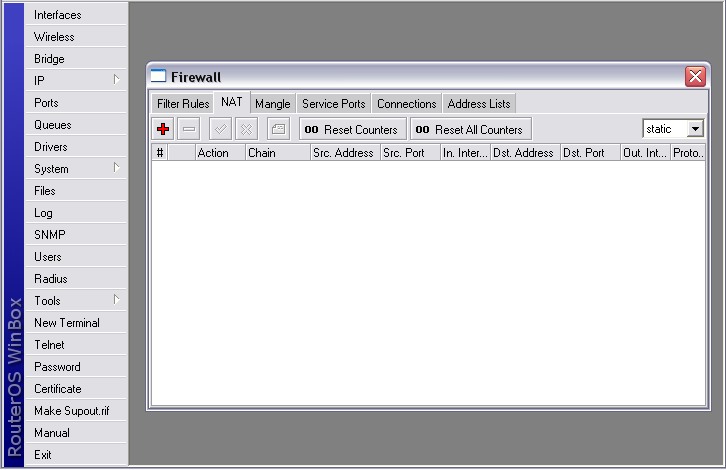
  • We start building the NAT as follows
NAT on Mikrotik Tutorial

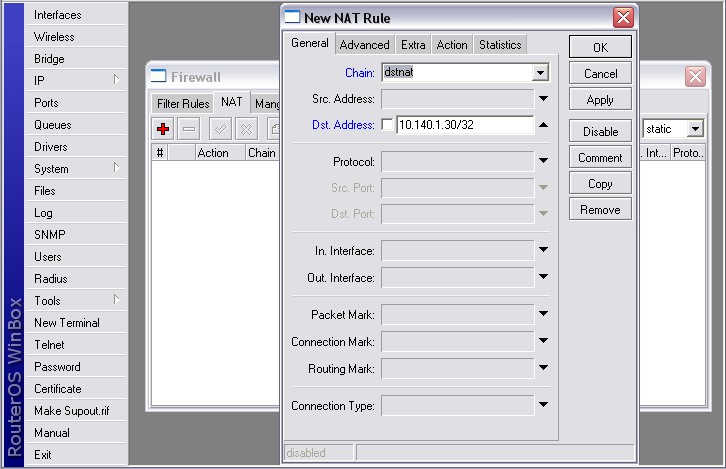
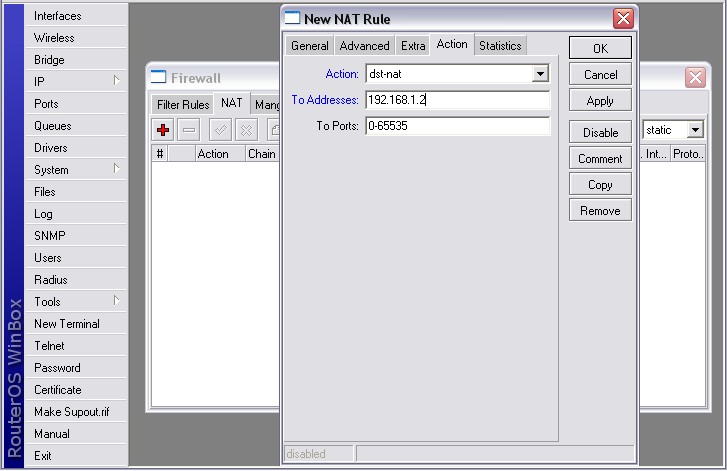
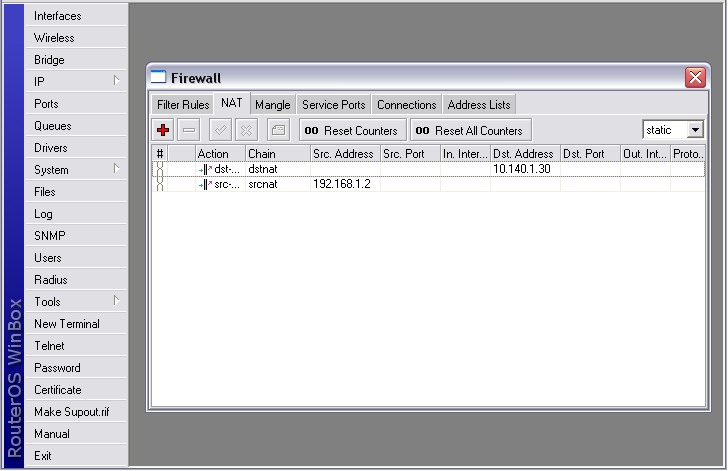
  • First the Destination Network Address Translation setting (DST-NAT)

Only do this if you want to expose this specifice internal pc to all ports, this is the same as a DMZ-----
NAT on Mikrotik Tutorial

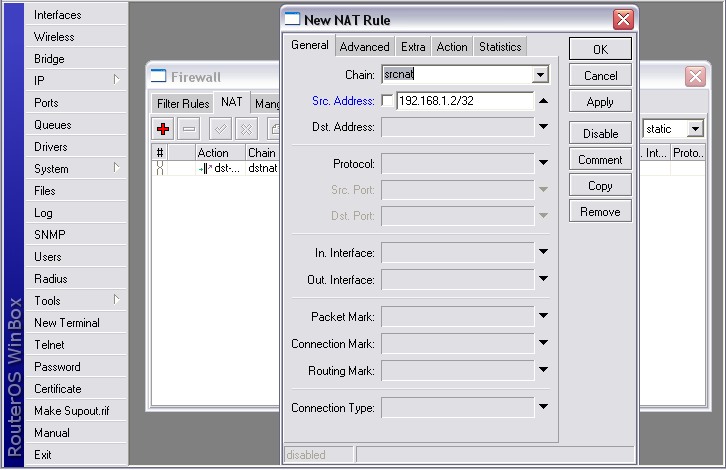
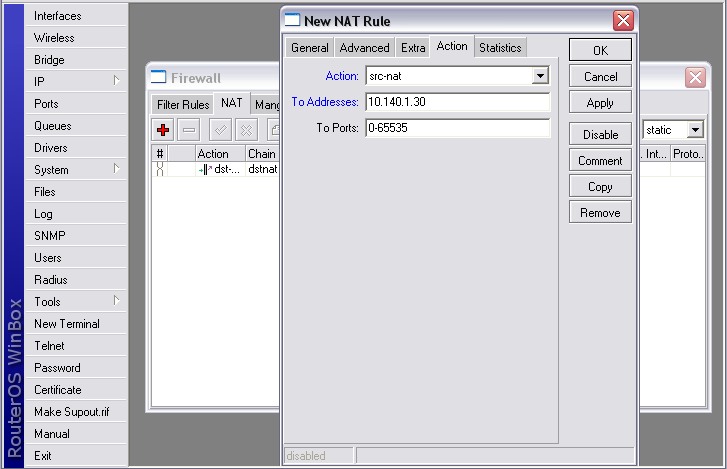
  • Then the Source Network Address Translation setting (SRC-NAT)
---On the Action Screen you could instead choose masquerade--- NAT on Mikrotik Tutorial
Mikrotik nat howto10.jpg

  • Private to Public Network Address Translation (NAT) is Complete!
 

Most Reading

Sidebar One